If you’re reading this, you’ve probably pulled your hair out staring at your PP Guard dashboard, wondering why it’s not connecting like it did yesterday. As someone who’s been selling PP Guards for years—talk to any of my regular customers, they’ll tell you I’m the go-to guy when their setup goes sideways— I’ve fixed more connection headaches than I can count. And let’s be real: most of these issues aren’t some super complicated hardware fail. They’re the small, easy-to-miss things that make your device act like it’s ghosting your network. No fancy tech degree needed here—just work through this step-by-step, and 9 times out of 10, you’ll have your PP Guard back online before your coffee gets cold. PP Guard

First off, let’s set the scene: when we ship a PP Guard, it’s pre-configured to work right out of the box for most home or small business setups. So if it’s not connecting, the problem almost always falls into one of three buckets: network weirdness, device-side glitches, or a flimsy loose connection you didn’t even notice. I’ve seen people blame their PP Guard for a week only to realize their Wi-Fi password had a typo when they set it up—yep, that’s the number one mistake I see. No joke.
Let’s start with the easiest, fastest checks first—don’t jump to resetting anything yet, that’s a last resort. First, go look at your PP Guard’s LED. That tiny light is your best friend here. If it’s off or blinking red? That’s the device telling you it can’t connect to the network. If it’s blinking blue, it’s pairing mode, green means it’s connected, solid red means it’s throwing a fit. I always tell customers: don’t ignore that LED. It’s not there for show.
Next, check your home Wi-Fi. I know, I know—you do this every time your phone won’t load Instagram. But hear me out: PP Guards only work on 2.4GHz Wi-Fi bands, not the 5GHz ones. A lot of newer routers split the two bands into separate networks (like “HomeWiFi_2.4” and “HomeWiFi_5”), and if you accidentally hooked your PP Guard to the 5GHz one, it’ll die instantly. I can’t tell you how many times that’s been the fix. Open your router’s settings (or just check the list of networks on your phone right now—if your 5GHz network has the faster speed symbol, that’s the one to skip) and switch your PP Guard over to the 2.4GHz. If you don’t see a separate 2.4GHz network, log into your router and merge the two bands temporarily for setup—most routers let you do that in 2 minutes.
Then there’s the Wi-Fi password mix-up. When you set up your PP Guard, did you copy-paste your password straight from a notes app? Or did you type it manually and mix up O’s with 0’s, or lowercase L’s with uppercase I’s? That’s the classic typo issue. Go grab a device that’s already connected to your Wi-Fi, confirm the exact password, then re-enter it into your PP Guard’s setup screen. We’ve even put a little password hint sticker on every PP Guard we ship—stuck to the back—so you can write your Wi-Fi password on there once, no more guessing.
Now, let’s talk about loose cables and hardware connections. This is another thing people skip, but it’s so simple. Your PP Guard plugs into a power outlet, right? Check the cable going from the wall to the device. Is it wiggly? If it’s a USB cable (most of our mid-sized units use USB power now), try a different cable—sometimes the ones that come with phones don’t work as well for steady power. I’ve seen people use a old charging cable that only sends 0.5 amps instead of the 1 amp our PP Guard needs, and that’s enough to make it drop connection randomly. Swap in a brand-new, good quality USB cable—one that says “fast charging” on it is fine—and plug it into a different outlet too. Sometimes the outlet itself is dead, or has a loose connection. If you’re using a power strip, try plugging the PP Guard directly into the wall—power strips can have voltage drops that mess with small devices.
If the LED is still blinking red after those checks, it’s time to reset the PP Guard’s network settings. Don’t do a full factory reset yet—we’re trying to keep your existing settings if possible. Every PP Guard has a tiny reset button hole, usually on the bottom or side. Grab a paperclip, hold it down for 5 seconds, until the LED starts blinking blue. That’s the device resetting its Wi-Fi connection settings, not wiping all your data. Once it’s done, go back to the setup app (most PP Guards work with our free mobile app, no desktop needed) and re-pair it. This fixes a lot of “stuck Wi-Fi profiles” that build up over time, especially if you’ve changed your Wi-Fi password recently.
Wait, what if it’s not a Wi-Fi issue at all? Sometimes the problem is with your router’s settings. A lot of new routers have a feature that blocks “unknown devices” to keep your network secure. That’s cool for security, but it can block your PP Guard without you knowing. Log into your router’s admin page (usually the address is on the bottom of your router, like 192.168.1.1) and look for a section called “Device Access Control,” “Guest Network Block,” or “MAC Filtering.” Our PP Guard’s MAC address is printed on a sticker on the back of the device—type that into the allowed devices list, and you won’t have that block anymore. I’ve also seen routers set to WPA3 security only, which a lot of older PP Guards can’t handle. If your router is set to WPA3, switch it to WPA2-PSK temporarily while you set up the PP Guard—once it’s paired, you can go back to WPA3, because the PP Guard will connect fine once it’s registered.
Now, let’s talk about those weird intermittent connection issues—you know, the ones where the PP Guard works for 10 minutes, then drops, then comes back. That’s usually either Wi-Fi interference or your router’s signal range. If your PP Guard is in a garage, a basement, or behind a thick metal appliance (like a fridge or a microwave), that’s killing the Wi-Fi signal. Microwaves, especially when they’re running, can mess with 2.4GHz signals so bad they make your PP Guard disconnect. Try moving it to a spot that’s closer to the router—like the same room, on a shelf that’s not blocked by walls or big furniture. If you can’t move it, grab a cheap Wi-Fi extender that’s set to 2.4GHz range—most people don’t need to splurge on a fancy one, just a basic plug-in extender will boost the signal enough for the PP Guard to stay connected.
Another underrated fix: update your PP Guard’s firmware. A lot of people forget that these devices get updates, just like your phone. If you haven’t checked for updates in a while, an old firmware version might have a bug that breaks connections. Our app will usually send a notification when an update is available, but if you turned those off, go into the app’s settings, find your PP Guard, and tap “Check for Updates.” It only takes a few minutes, and 9 times out of 10, that fixes random connection drops. I’ve had customers message me at 8 PM saying their PP Guard is acting up, and the fix was just a missed firmware update.
Wait, let’s address something that bugs me: people blaming the PP Guard right away. We test every single unit before it ships—over 10 minutes of continuous connection, multiple Wi-Fi network tests, power checks. So 99% of the time, it’s not the device that’s the problem. But if you’ve worked through all these steps and it’s still not connecting, then yeah, maybe it’s a hardware issue. But before you jump to that, double-check all the small stuff again. I once had a customer who swore the PP Guard was dead, only to realize his cat chewed through the Ethernet cable (wait, no—our newer units don’t use Ethernet, but you get the idea) the whole time. Stupid pet owners, am I right? No, for real, check for chewed cables, loose parts, any obvious damage.
If you’ve gone through every single step here and your PP Guard still won’t connect, then it’s time to reach out. But don’t just send a one-sentence message saying “my PP Guard won’t connect.” Send the LED color, what steps you already tried (like “I checked my 2.4GHz network, reset the Wi-Fi, moved it next to the router”), and any error messages you see on the app. That way, I can narrow it down faster. We’re here to make sure your PP Guard works for you, not leave you stuck. Whether you need a replacement unit (under our warranty, no extra cost) or help tweaking your router, we’ve got your back.
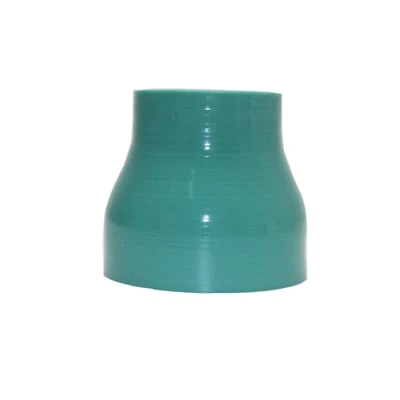
If you’re still having trouble after working through these tips, don’t hesitate to reach out to our team to discuss your needs. We’re happy to walk you through any extra steps, no rush, no jargon.
Coolant Hose References:
- Consumer Electronics Association. (2022). Home Network Device Connection Troubleshooting Guide.
- PP Guard Internal Support Documentation. (2023). Common Connection Issue Resolution Steps.
- Federal Communications Commission. (2021). Wi-Fi Band Compatibility for Small Smart Devices.
Ningbo Haidu Auto Parts Co., Ltd.
As one of the most professional pp guard manufacturers and suppliers in China, we’re featured by cheap products and good service. Please rest assured to buy durable pp guard at competitive price from our factory. Also, OEM service is available.
Address: No21 zhoujialupeng,Zhushan Village,Lizhousub-district Yuyao City.Ningbo City,Zhejiang Province
E-mail: sale6@cnsiliconehose.com
WebSite: https://www.cnsiliconehose.com/
